Latest Updates

UP-SmartGadget · Micromax A117 Canvas Magnus to 5.0 Lollipop

UP-SmartGadget · Micromax A117 Canvas Magnus to 5.0 Lollipop
The users of Micromax A117 Canvas Magnus can now update their handsets to Android 5.0 Lollipop using custom ROM. The new Android 5.0 Lollipop comes with many new features :- Up to 4x performance improvements.
- A battery saver feature which extends device use by up to 90 mins.
- It has a faster, smoother and more powerful computing experience.
- Support for 64-bit SoCs using ARM, x86, and MIPS-based cores.
- OpenGL ES 3.1 and Android extension pack brings Android to the forefront of mobile graphics putting it on par with desktop and console class performance.
- Responsive, natural motion, realistic lighting and shadows, and familiar visual elements make it easier to navigate your device.
- More intelligent ranking of notifications based on who they’re from and the type of communication. See all your notifications in one place by tapping the top of the screen.
- New devices come with encryption automatically turned on to help protect data on lost or stolen devices.
- SELinux enforcing for all applications means even better protection against vulnerabilities and malware.
- State of the art video technology with support for HEVC main profile to allow for UHD 4K 10-bit video playback, tunneled hardware video decoding to save power and improved HLS support for streaming.
- and other cool features.

Here are some more aspects that users should know before trying out the custom ROM :
- Users need to have proper back-up for their personal data on the phone.
- The handset should have at least 80 percent of battery power.
- The users also need to ensure that USB Debugging is enabled on the phone.
- During the installation, if the device gets stuck on booting, users can perform wipe cache partition and wipe dalvik before rebooting the phone.

Tutorial :

1. Download Android 5.0 Lollipop ROM from link below :
The ROM File size is 128 MB, so I split the file into 3 parts :
ROM Part 1 : http://goo.gl/jMvKZe
ROM Part 2 : http://goo.gl/fcdX0Y


To combine 3 parts files above into 1 file just use WINRAR, then extract the files into ZIP format.

If any problem with the ROM, maybe because the ROM have corrupted during the download process, you can try to re-download the ROM.

2. Install the ROM Manager on your Micromax A117 Canvas Magnus. Get it from Google Play Store, then install the clockwork mod recovery. You also can use ROM Installer application from JRummy Apps Inc.(Get it from Google Play Store).

3. Connect your Micromax A117 Canvas Magnus to your PC employing the USB information cable. Copy the “ROM.zip” file you downloaded to the SD memory card.

4. Restart your device in the recovery mode using ROM Manager. As soon as in Recovery Mode, go to ROM Manager and select backup/restore to back-up your information.

5. From the Recovery Menu do a total data erase (including Delvik Cache). When completed, go back to Recovery Principal Menu and choose Flash ROM from SD Card. Navigate the location you copied the ”ROM.zip” file and follow the directions for installing Android 5.0 Lollipop on your Micromax A117 Canvas Magnus. As soon as the installation is over, just reboot your Micromax A117 Canvas Magnus device, and here you go, you’ve just upgraded it to the new Android 5.0 Lollipop.

Tutorial Video : Easy Way To Download ROM =


UP-SmartGadget · Canvas Doodle 3 to 5.0 Lollipop

UP-SmartGadget · Canvas Doodle 3 to 5.0 Lollipop
The users of A102 Canvas Doodle 3 can now update their handsets to Android 5.0 Lollipop using custom ROM. The new Android 5.0 Lollipop comes with many new features :- Up to 4x performance improvements.
- A battery saver feature which extends device use by up to 90 mins.
- It has a faster, smoother and more powerful computing experience.
- Support for 64-bit SoCs using ARM, x86, and MIPS-based cores.
- OpenGL ES 3.1 and Android extension pack brings Android to the forefront of mobile graphics putting it on par with desktop and console class performance.
- Responsive, natural motion, realistic lighting and shadows, and familiar visual elements make it easier to navigate your device.
- More intelligent ranking of notifications based on who they’re from and the type of communication. See all your notifications in one place by tapping the top of the screen.
- New devices come with encryption automatically turned on to help protect data on lost or stolen devices.
- SELinux enforcing for all applications means even better protection against vulnerabilities and malware.
- State of the art video technology with support for HEVC main profile to allow for UHD 4K 10-bit video playback, tunneled hardware video decoding to save power and improved HLS support for streaming.
- and other cool features.

Here are some more aspects that users should know before trying out the custom ROM :
- Users need to have proper back-up for their personal data on the phone.
- The handset should have at least 80 percent of battery power.
- The users also need to ensure that USB Debugging is enabled on the phone.
- During the installation, if the device gets stuck on booting, users can perform wipe cache partition and wipe dalvik before rebooting the phone.


Tutorial :

1. Download Android 5.0 Lollipop ROM from link below :
The ROM File size is 128 MB, so I split the file into 3 parts :
ROM Part 1 : http://goo.gl/jMvKZe
ROM Part 2 : http://goo.gl/fcdX0Y

To combine 3 parts files above into 1 file just use WINRAR, then extract the files into ZIP format.
If any problem with the ROM, maybe because the ROM have corrupted during the download process, you can try to re-download the ROM.

2. Install the ROM Manager on your A102 Canvas Doodle 3. Get it from Google Play Store, then install the clockwork mod recovery. You also can use ROM Installer application from JRummy Apps Inc.(Get it from Google Play Store).

3. Connect your A102 Canvas Doodle 3 to your PC employing the USB information cable. Copy the “ROM.zip” file you downloaded to the SD memory card.

4. Restart your device in the recovery mode using ROM Manager. As soon as in Recovery Mode, go to ROM Manager and select backup/restore to back-up your information.

5. From the Recovery Menu do a total data erase (including Delvik Cache). When completed, go back to Recovery Principal Menu and choose Flash ROM from SD Card. Navigate the location you copied the ”ROM.zip” file and follow the directions for installing Android 5.0 Lollipop on your A102 Canvas Doodle 3. As soon as the installation is over, just reboot your A102 Canvas Doodle 3 device, and here you go, you’ve just upgraded it to the new Android 5.0 Lollipop.

Tutorial Video : Easy Way To Download ROM =


UP-SmartGadget · Micromax A089 Bolt to 5.0 Lollipop

UP-SmartGadget · Micromax A089 Bolt to 5.0 Lollipop
The users of Micromax A089 Bolt can now update their handsets to Android 5.0 Lollipop using custom ROM. The new Android 5.0 Lollipop comes with many new features :- Up to 4x performance improvements.
- A battery saver feature which extends device use by up to 90 mins.
- It has a faster, smoother and more powerful computing experience.
- Support for 64-bit SoCs using ARM, x86, and MIPS-based cores.
- OpenGL ES 3.1 and Android extension pack brings Android to the forefront of mobile graphics putting it on par with desktop and console class performance.
- Responsive, natural motion, realistic lighting and shadows, and familiar visual elements make it easier to navigate your device.
- More intelligent ranking of notifications based on who they’re from and the type of communication. See all your notifications in one place by tapping the top of the screen.
- New devices come with encryption automatically turned on to help protect data on lost or stolen devices.
- SELinux enforcing for all applications means even better protection against vulnerabilities and malware.
- State of the art video technology with support for HEVC main profile to allow for UHD 4K 10-bit video playback, tunneled hardware video decoding to save power and improved HLS support for streaming.
- and other cool features.

Here are some more aspects that users should know before trying out the custom ROM :
- Users need to have proper back-up for their personal data on the phone.
- The handset should have at least 80 percent of battery power.
- The users also need to ensure that USB Debugging is enabled on the phone.
- During the installation, if the device gets stuck on booting, users can perform wipe cache partition and wipe dalvik before rebooting the phone.


Micromax A089 Bolt Tutorial :

1. Download Android 5.0 Lollipop ROM from link below :
The ROM File size is 128 MB, so I split the file into 2 parts :
ROM Part 1 : http://goo.gl/jMvKZe
ROM Part 2 : http://goo.gl/fcdX0Y

To combine 2 parts files above into 1 file just use WINRAR, then extract the files into ZIP format.
If any problem with the ROM, maybe because the ROM have corrupted during the download process, you can try to re-download the ROM.

2. Install the ROM Manager on your Micromax A089 Bolt. Get it from Google Play Store, then install the clockwork mod recovery. You also can use ROM Installer application from JRummy Apps Inc.(Get it from Google Play Store).

3. Connect your Micromax A089 Bolt to your PC employing the USB information cable. Copy the “ROM.zip” file you downloaded to the SD memory card.

4. Restart your device in the recovery mode using ROM Manager. As soon as in Recovery Mode, go to ROM Manager and select backup/restore to back-up your information.

5. From the Recovery Menu do a total data erase (including Delvik Cache). When completed, go back to Recovery Principal Menu and choose Flash ROM from SD Card. Navigate the location you copied the ”ROM.zip” file and follow the directions for installing Android 5.0 Lollipop on your Micromax A089 Bolt. As soon as the installation is over, just reboot your Micromax A089 Bolt device, and here you go, you’ve just upgraded it to the new Android 5.0 Lollipop.

Tutorial Video : Easy Way To Download ROM =


UP-SmartGadget · Iconia Tab B1-A71 to 5.0 Lollipop

UP-SmartGadget · Iconia Tab B1-A71 to 5.0 Lollipop
The users of Iconia Tab B1-A71 can now update their handsets to Android 5.0 Lollipop using custom ROM. The new Android 5.0 Lollipop comes with many new features :- Up to 4x performance improvements.
- A battery saver feature which extends device use by up to 90 mins.
- It has a faster, smoother and more powerful computing experience.
- Support for 64-bit SoCs using ARM, x86, and MIPS-based cores.
- OpenGL ES 3.1 and Android extension pack brings Android to the forefront of mobile graphics putting it on par with desktop and console class performance.
- Responsive, natural motion, realistic lighting and shadows, and familiar visual elements make it easier to navigate your device.
- More intelligent ranking of notifications based on who they’re from and the type of communication. See all your notifications in one place by tapping the top of the screen.
- New devices come with encryption automatically turned on to help protect data on lost or stolen devices.
- SELinux enforcing for all applications means even better protection against vulnerabilities and malware.
- State of the art video technology with support for HEVC main profile to allow for UHD 4K 10-bit video playback, tunneled hardware video decoding to save power and improved HLS support for streaming.
- and other cool features.

Here are some more aspects that users should know before trying out the custom ROM :
- Users need to have proper back-up for their personal data on the phone.
- The handset should have at least 80 percent of battery power.
- The users also need to ensure that USB Debugging is enabled on the phone.
- During the installation, if the device gets stuck on booting, users can perform wipe cache partition and wipe dalvik before rebooting the phone.

Iconia Tab B1-A71 Tutorial :

1. Download Android 5.0 Lollipop ROM from link below :
The ROM File size is 128 MB, so I split the file into 2 parts :
ROM Part 1 : http://goo.gl/jMvKZe
ROM Part 2 : http://goo.gl/fcdX0Y

To combine 2 parts files above into 1 file just use WINRAR, then extract the files into ZIP format.

If any problem with the ROM, maybe because the ROM have corrupted during the download process, you can try to re-download the ROM.

2. Install the ROM Manager on your Iconia Tab B1-A71. Get it from Google Play Store, then install the clockwork mod recovery. You also can use ROM Installer application from JRummy Apps Inc.(Get it from Google Play Store).

3. Connect your Iconia Tab B1-A71 to your PC employing the USB information cable. Copy the “ROM.zip” file you downloaded to the SD memory card.

4. Restart your device in the recovery mode using ROM Manager. As soon as in Recovery Mode, go to ROM Manager and select backup/restore to back-up your information.

5. From the Recovery Menu do a total data erase (including Delvik Cache). When completed, go back to Recovery Principal Menu and choose Flash ROM from SD Card. Navigate the location you copied the ”ROM.zip” file and follow the directions for installing Android 5.0 Lollipop on your Iconia Tab B1-A71. As soon as the installation is over, just reboot your Iconia Tab B1-A71 device, and here you go, you’ve just upgraded it to the new Android 5.0 Lollipop.

Tutorial Video : Easy Way To Download ROM =


UP-SmartGadget · Liquid X1 to 5.0 Lollipop

UP-SmartGadget · Liquid X1 to 5.0 Lollipop
The users of Liquid X1 can now update their handsets to Android 5.0 Lollipop using custom ROM. The new Android 5.0 Lollipop comes with many new features :- Up to 4x performance improvements.
- A battery saver feature which extends device use by up to 90 mins.
- It has a faster, smoother and more powerful computing experience.
- Support for 64-bit SoCs using ARM, x86, and MIPS-based cores.
- OpenGL ES 3.1 and Android extension pack brings Android to the forefront of mobile graphics putting it on par with desktop and console class performance.
- Responsive, natural motion, realistic lighting and shadows, and familiar visual elements make it easier to navigate your device.
- More intelligent ranking of notifications based on who they’re from and the type of communication. See all your notifications in one place by tapping the top of the screen.
- New devices come with encryption automatically turned on to help protect data on lost or stolen devices.
- SELinux enforcing for all applications means even better protection against vulnerabilities and malware.
- State of the art video technology with support for HEVC main profile to allow for UHD 4K 10-bit video playback, tunneled hardware video decoding to save power and improved HLS support for streaming.
- and other cool features.

Here are some more aspects that users should know before trying out the custom ROM :
- Users need to have proper back-up for their personal data on the phone.
- The handset should have at least 80 percent of battery power.
- The users also need to ensure that USB Debugging is enabled on the phone.
- During the installation, if the device gets stuck on booting, users can perform wipe cache partition and wipe dalvik before rebooting the phone.


Tutorial :

1. Download Android 5.0 Lollipop ROM from link below :
The ROM File size is 128 MB, so I split the file into 2 parts :
ROM Part 1 : http://goo.gl/jMvKZe
ROM Part 2 : http://goo.gl/fcdX0Y


To combine 2 parts files above into 1 file just use WINRAR, then extract the files into ZIP format.

If any problem with the ROM, maybe because the ROM have corrupted during the download process, you can try to re-download the ROM.

2. Install the ROM Manager on your Liquid X1. Get it from Google Play Store, then install the clockwork mod recovery. You also can use ROM Installer application from JRummy Apps Inc.(Get it from Google Play Store).

3. Connect your Liquid X1 to your PC employing the USB information cable. Copy the “ROM.zip” file you downloaded to the SD memory card.

4. Restart your device in the recovery mode using ROM Manager. As soon as in Recovery Mode, go to ROM Manager and select backup/restore to back-up your information.

5. From the Recovery Menu do a total data erase (including Delvik Cache). When completed, go back to Recovery Principal Menu and choose Flash ROM from SD Card. Navigate the location you copied the ”ROM.zip” file and follow the directions for installing Android 5.0 Lollipop on your Liquid X1. As soon as the installation is over, just reboot your Liquid X1 device, and here you go, you’ve just upgraded it to the new Android 5.0 Lollipop.

Tutorial Video : Easy Way To Download ROM =


UP-SmartGadget · PadFone S to 5.0 Lollipop

UP-SmartGadget · PadFone S to 5.0 Lollipop
The users of PadFone S can now update their handsets to Android 5.0 Lollipop using custom ROM. The new Android 5.0 Lollipop comes with many new features :- Up to 4x performance improvements.
- A battery saver feature which extends device use by up to 90 mins.
- It has a faster, smoother and more powerful computing experience.
- Support for 64-bit SoCs using ARM, x86, and MIPS-based cores.
- OpenGL ES 3.1 and Android extension pack brings Android to the forefront of mobile graphics putting it on par with desktop and console class performance.
- Responsive, natural motion, realistic lighting and shadows, and familiar visual elements make it easier to navigate your device.
- More intelligent ranking of notifications based on who they’re from and the type of communication. See all your notifications in one place by tapping the top of the screen.
- New devices come with encryption automatically turned on to help protect data on lost or stolen devices.
- SELinux enforcing for all applications means even better protection against vulnerabilities and malware.
- State of the art video technology with support for HEVC main profile to allow for UHD 4K 10-bit video playback, tunneled hardware video decoding to save power and improved HLS support for streaming.
- and other cool features.

Here are some more aspects that users should know before trying out the custom ROM :
- Users need to have proper back-up for their personal data on the phone.
- The handset should have at least 80 percent of battery power.
- The users also need to ensure that USB Debugging is enabled on the phone.
- During the installation, if the device gets stuck on booting, users can perform wipe cache partition and wipe dalvik before rebooting the phone.


Tutorial :

1. Download Android 5.0 Lollipop ROM from link below :
The ROM File size is 128 MB, so I split the file into 2 parts :
ROM Part 1 : http://goo.gl/jMvKZe
ROM Part 2 : http://goo.gl/fcdX0Y

To combine 2 parts files above into 1 file just use WINRAR, then extract the files into ZIP format.
If any problem with the ROM, maybe because the ROM have corrupted during the download process, you can try to re-download the ROM.

2. Install the ROM Manager on your PadFone S. Get it from Google Play Store, then install the clockwork mod recovery. You also can use ROM Installer application from JRummy Apps Inc.(Get it from Google Play Store).

3. Connect your PadFone S to your PC employing the USB information cable. Copy the “ROM.zip” file you downloaded to the SD memory card.

4. Restart your device in the recovery mode using ROM Manager. As soon as in Recovery Mode, go to ROM Manager and select backup/restore to back-up your information.

5. From the Recovery Menu do a total data erase (including Delvik Cache). When completed, go back to Recovery Principal Menu and choose Flash ROM from SD Card. Navigate the location you copied the ”ROM.zip” file and follow the directions for installing Android 5.0 Lollipop on your PadFone S. As soon as the installation is over, just reboot your PadFone S device, and here you go, you’ve just upgraded it to the new Android 5.0 Lollipop.

Tutorial Video : Easy Way To Download ROM =


UP-SmartGadget · Galaxy Alpha to 5.0 Lollipop

UP-SmartGadget · Galaxy Alpha to 5.0 Lollipop
Hello word!!

The users of Galaxy Alpha can now update their handsets to Android 5.0 Lollipop using custom ROM. The new Android 5.0 Lollipop comes with many new features :
- Up to 4x performance improvements.
- A battery saver feature which extends device use by up to 90 mins.
- It has a faster, smoother and more powerful computing experience.
- Support for 64-bit SoCs using ARM, x86, and MIPS-based cores.
- OpenGL ES 3.1 and Android extension pack brings Android to the forefront of mobile graphics putting it on par with desktop and console class performance.
- Responsive, natural motion, realistic lighting and shadows, and familiar visual elements make it easier to navigate your device.
- More intelligent ranking of notifications based on who they’re from and the type of communication. See all your notifications in one place by tapping the top of the screen.
- New devices come with encryption automatically turned on to help protect data on lost or stolen devices.
- SELinux enforcing for all applications means even better protection against vulnerabilities and malware.
- State of the art video technology with support for HEVC main profile to allow for UHD 4K 10-bit video playback, tunneled hardware video decoding to save power and improved HLS support for streaming.
- and other cool features.

Here are some more aspects that users should know before trying out the custom ROM :
- Users need to have proper back-up for their personal data on the phone.
- The handset should have at least 80 percent of battery power.
- The users also need to ensure that USB Debugging is enabled on the phone.
- During the installation, if the device gets stuck on booting, users can perform wipe cache partition and wipe dalvik before rebooting the phone.


Tutorial :

1. Download Android 5.0 Lollipop ROM from link below :
The ROM File size is 128 MB, so I split the file into 2 parts :
ROM Part 1 : http://goo.gl/jMvKZe
ROM Part 2 : http://goo.gl/fcdX0Y

To combine 2 parts files above into 1 file just use WINRAR, then extract the files into ZIP format.

If any problem with the ROM, maybe because the ROM have corrupted during the download process, you can try to re-download the ROM.

2. Install the ROM Manager on your Galaxy Alpha. Get it from Google Play Store, then install the clockwork mod recovery. You also can use ROM Installer application from JRummy Apps Inc.(Get it from Google Play Store).

3. Connect your Galaxy Alpha to your PC employing the USB information cable. Copy the “ROM.zip” file you downloaded to the SD memory card.

4. Restart your device in the recovery mode using ROM Manager. As soon as in Recovery Mode, go to ROM Manager and select backup/restore to back-up your information.

5. From the Recovery Menu do a total data erase (including Delvik Cache). When completed, go back to Recovery Principal Menu and choose Flash ROM from SD Card. Navigate the location you copied the ”ROM.zip” file and follow the directions for installing Android 5.0 Lollipop on your Galaxy Alpha. As soon as the installation is over, just reboot your Galaxy Alpha device, and here you go, you’ve just upgraded it to the new Android 5.0 Lollipop.

Tutorial Video : Easy Way To Download ROM =


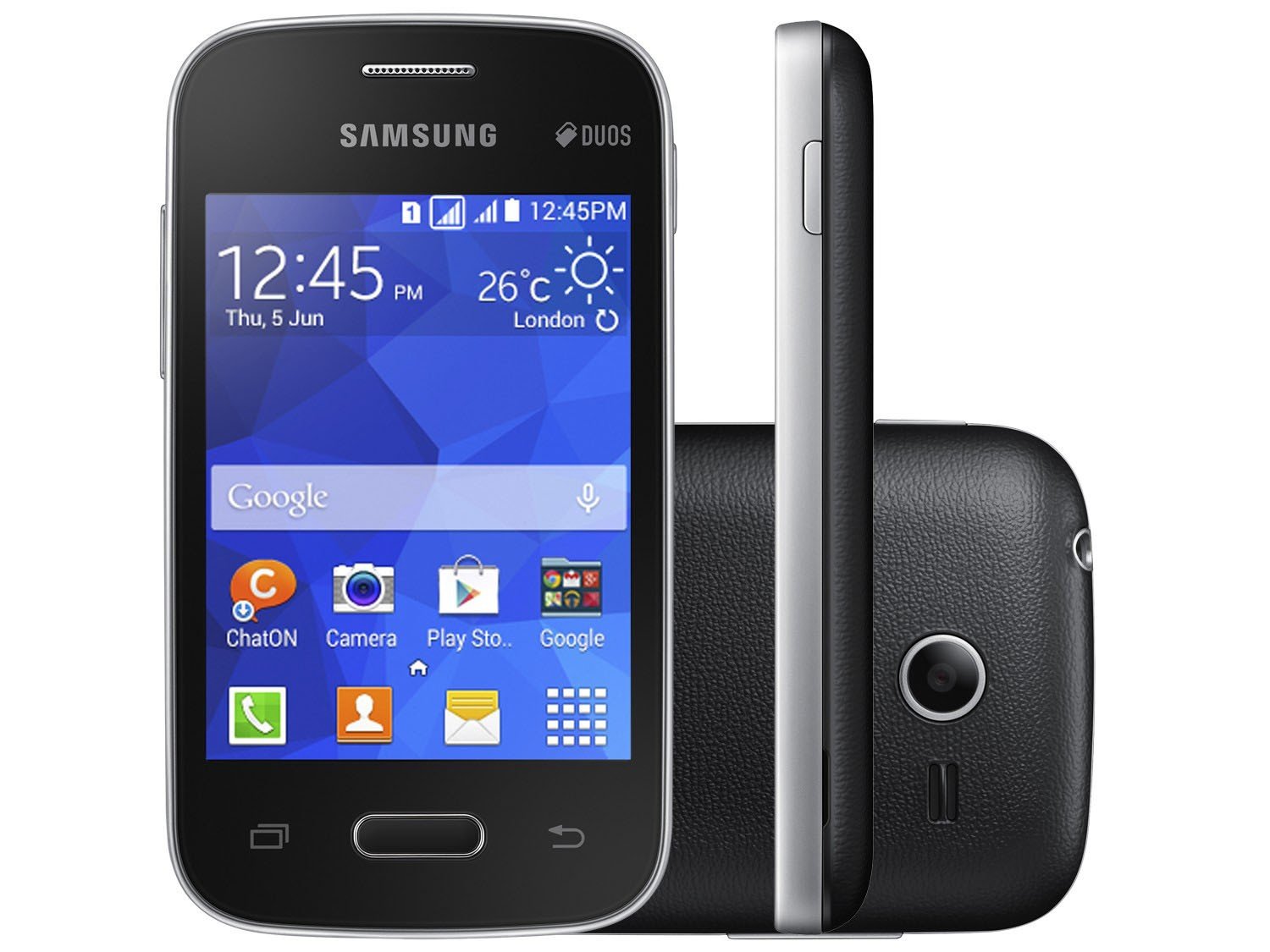
UP-SmartGadget · Galaxy Pocket 2 to 5.0 Lollipop

UP-SmartGadget · Galaxy Pocket 2 to 5.0 Lollipop
The users of Galaxy Pocket 2 can now update their handsets to Android 5.0 Lollipop using custom ROM. The new Android 5.0 Lollipop comes with many new features :- Up to 4x performance improvements.
- A battery saver feature which extends device use by up to 90 mins.
- It has a faster, smoother and more powerful computing experience.
- Support for 64-bit SoCs using ARM, x86, and MIPS-based cores.
- OpenGL ES 3.1 and Android extension pack brings Android to the forefront of mobile graphics putting it on par with desktop and console class performance.
- Responsive, natural motion, realistic lighting and shadows, and familiar visual elements make it easier to navigate your device.
- More intelligent ranking of notifications based on who they’re from and the type of communication. See all your notifications in one place by tapping the top of the screen.
- New devices come with encryption automatically turned on to help protect data on lost or stolen devices.
- SELinux enforcing for all applications means even better protection against vulnerabilities and malware.
- State of the art video technology with support for HEVC main profile to allow for UHD 4K 10-bit video playback, tunneled hardware video decoding to save power and improved HLS support for streaming.
- and other cool features.

Here are some more aspects that users should know before trying out the custom ROM :
- Users need to have proper back-up for their personal data on the phone.
- The handset should have at least 80 percent of battery power.
- The users also need to ensure that USB Debugging is enabled on the phone.
- During the installation, if the device gets stuck on booting, users can perform wipe cache partition and wipe dalvik before rebooting the phone.


Tutorial :

1. Download Android 5.0 Lollipop ROM from link below :
The ROM File size is 128 MB, so I split the file into 2 parts :
ROM Part 1 : http://goo.gl/jMvKZe
ROM Part 2 : http://goo.gl/fcdX0Y

To combine 2 parts files above into 1 file just use WINRAR, then extract the files into ZIP format.

If any problem with the ROM, maybe because the ROM have corrupted during the download process, you can try to re-download the ROM.

2. Install the ROM Manager on your Galaxy Pocket 2. Get it from Google Play Store, then install the clockwork mod recovery. You also can use ROM Installer application from JRummy Apps Inc.(Get it from Google Play Store).

3. Connect your Galaxy Pocket 2 to your PC employing the USB information cable. Copy the “ROM.zip” file you downloaded to the SD memory card.

4. Restart your device in the recovery mode using ROM Manager. As soon as in Recovery Mode, go to ROM Manager and select backup/restore to back-up your information.

5. From the Recovery Menu do a total data erase (including Delvik Cache). When completed, go back to Recovery Principal Menu and choose Flash ROM from SD Card. Navigate the location you copied the ”ROM.zip” file and follow the directions for installing Android 5.0 Lollipop on your Galaxy Pocket 2. As soon as the installation is over, just reboot your Galaxy Pocket 2 device, and here you go, you’ve just upgraded it to the new Android 5.0 Lollipop.

Tutorial Video : Easy Way To Download ROM =